Amazon Redshift
Connect Amazon Redshift to Klipfolio to build dashboards that update automatically from your warehouse data. Write custom SQL queries, visualize results in 30+ chart types, and share with your team — no manual exports required.
Track all your Amazon Redshift KPIs in one place
Sign up for free and start making decisions for your business with confidence.
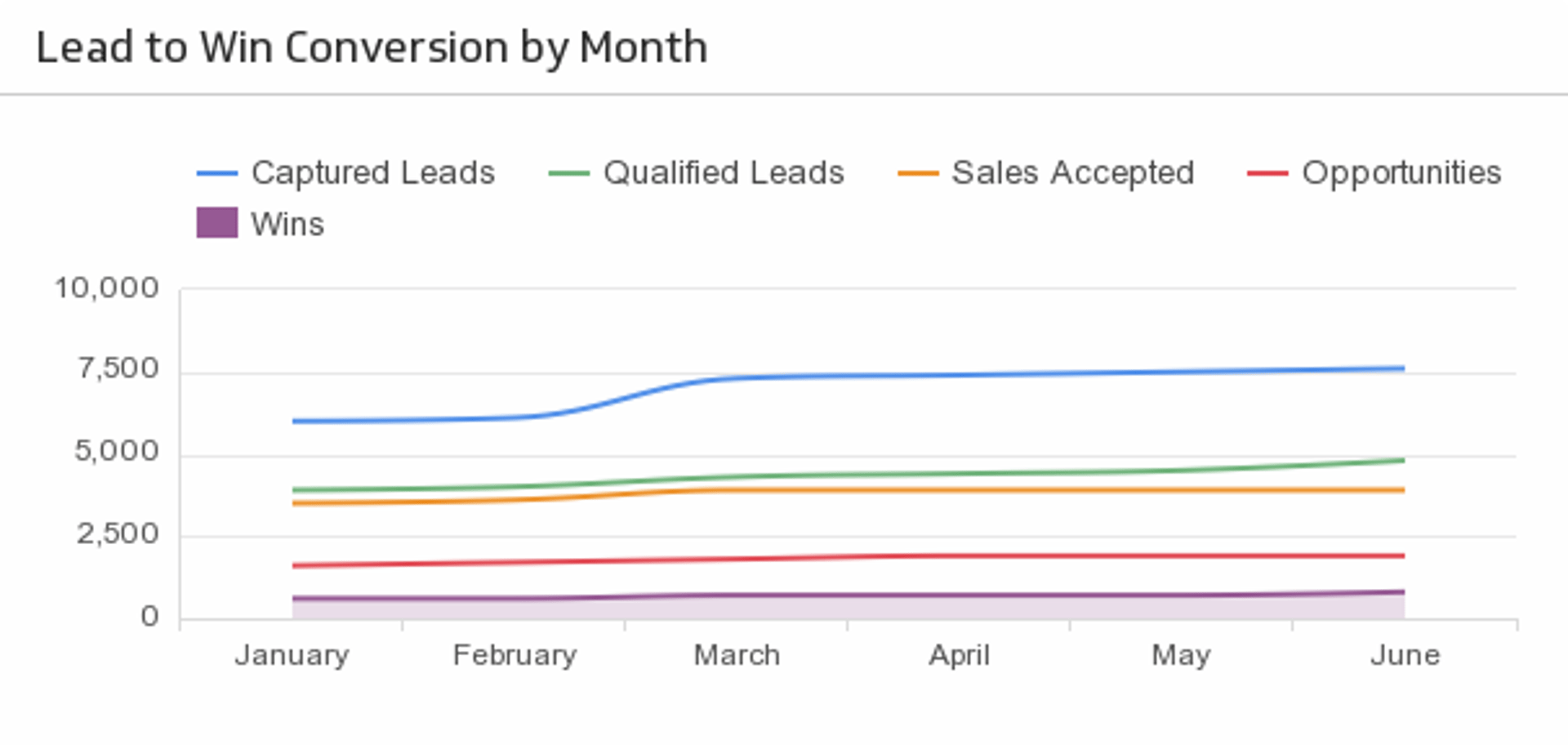
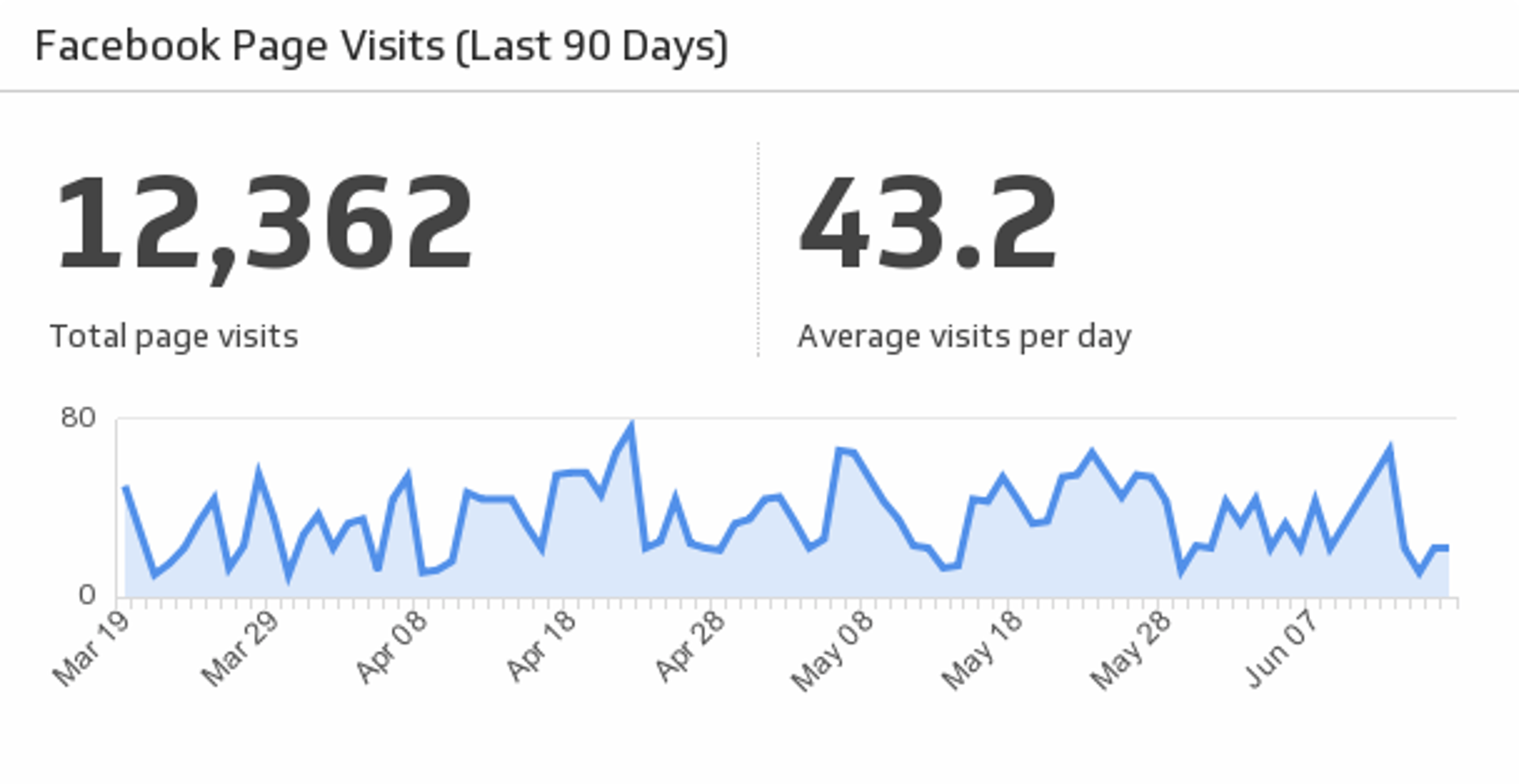
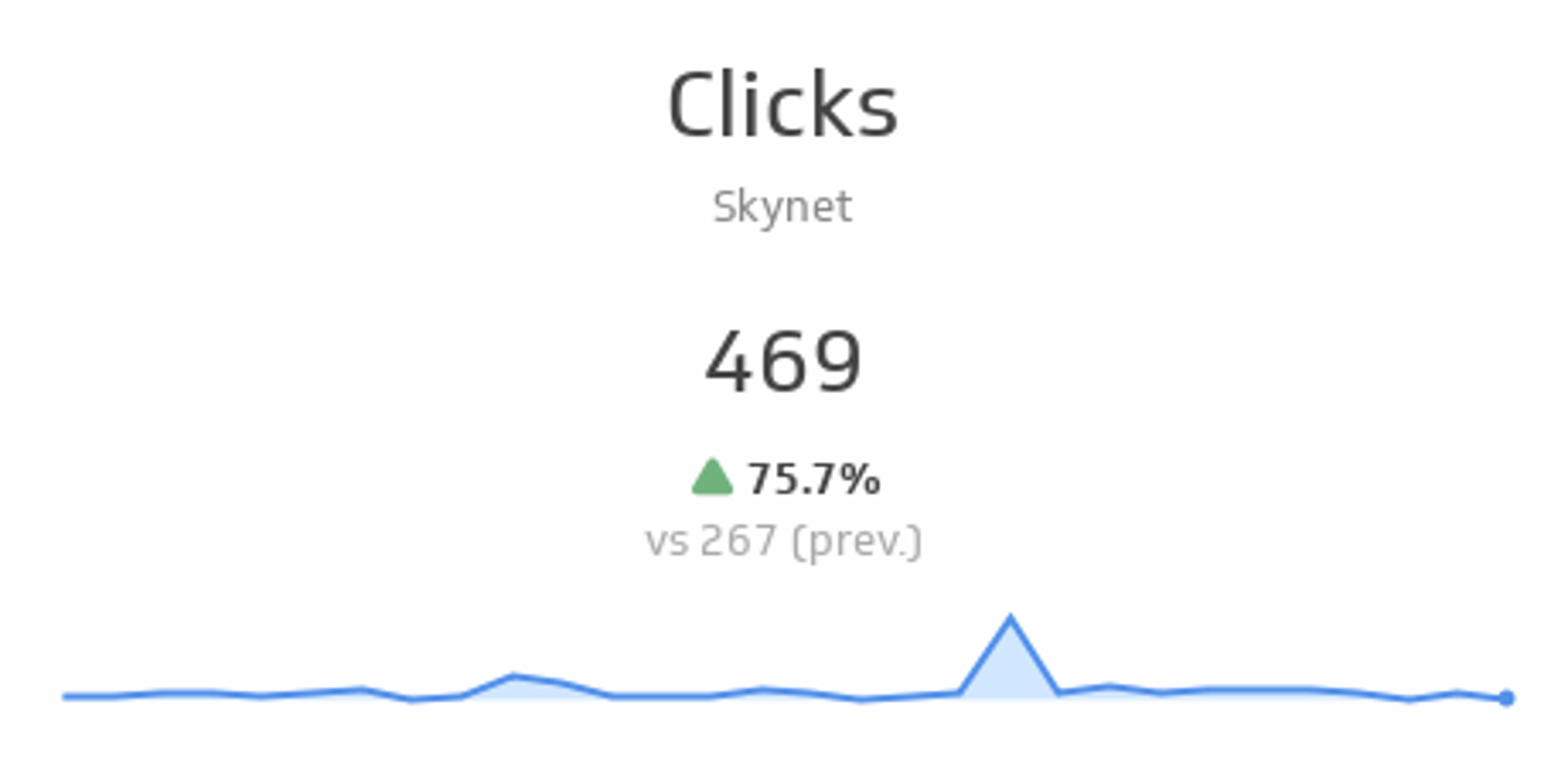
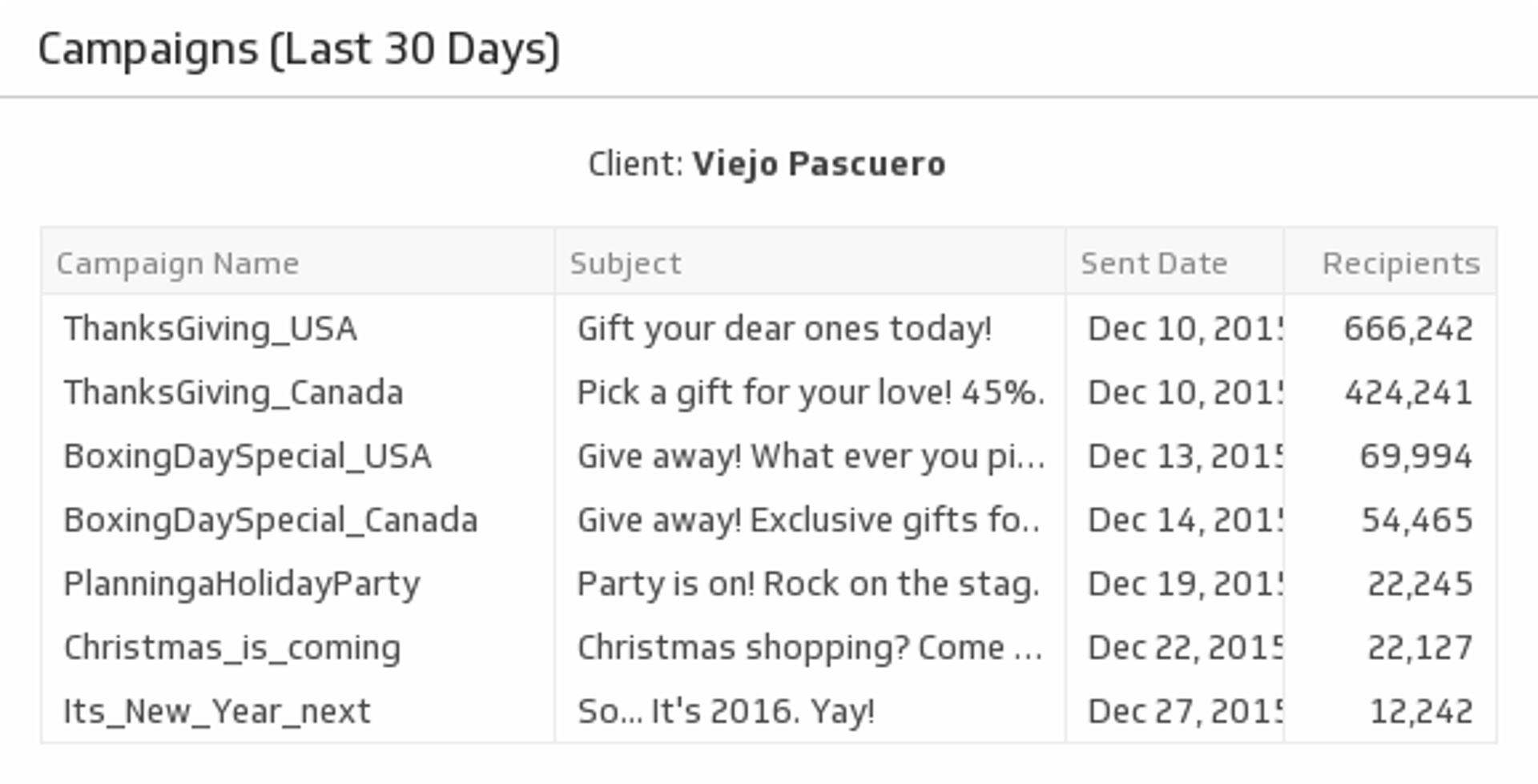
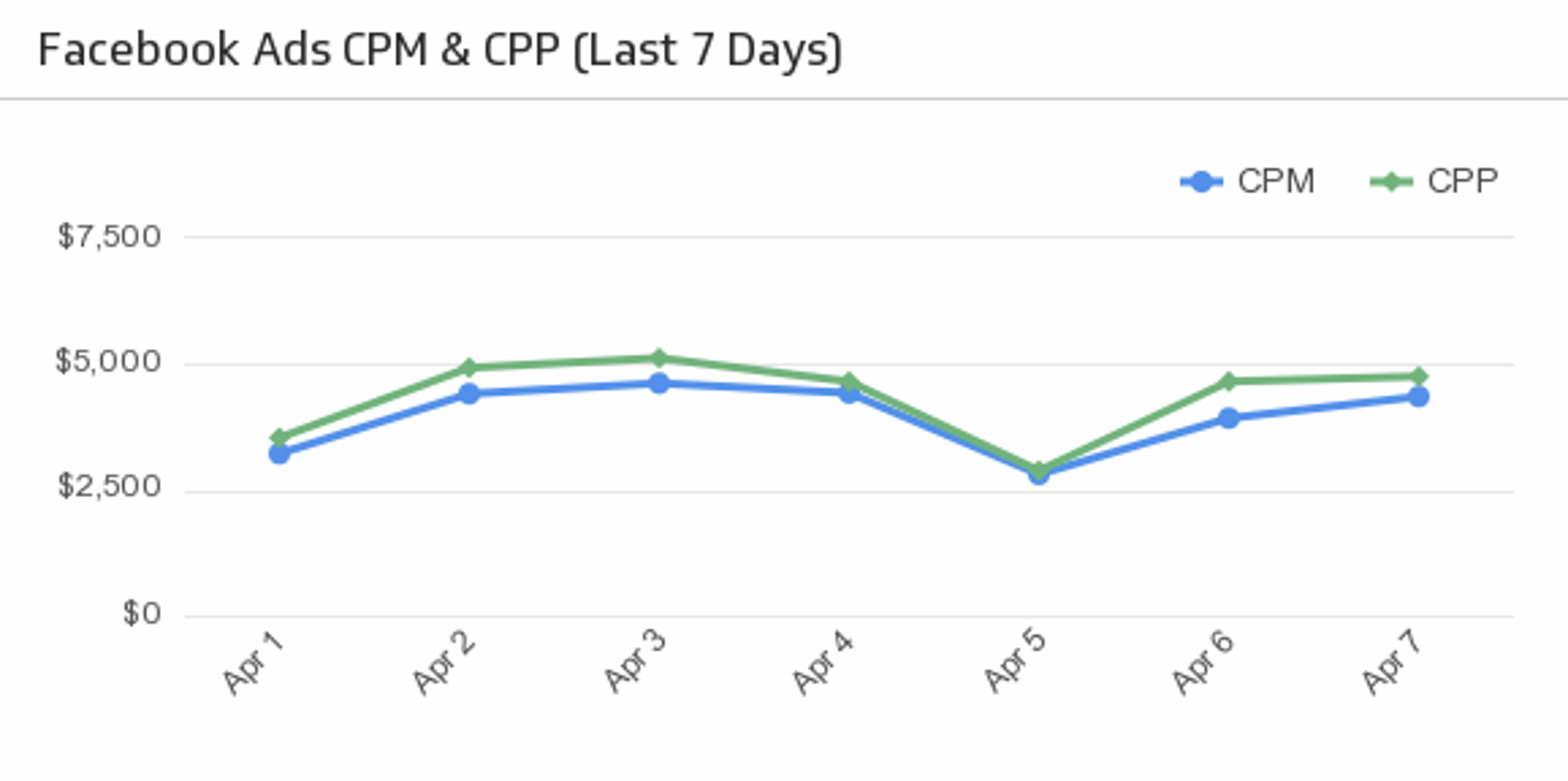
Manually exporting data from Amazon Redshift for every report is slow, error-prone, and unsustainable. Connect Redshift to Klipfolio and your dashboards update automatically — no more running the same queries on repeat.
How to connect Amazon Redshift to Klipfolio
Klipfolio supports two methods for connecting to Amazon Redshift. Choose the one that fits your data volume and security requirements.
Data warehouse metrics (recommended for most Redshift users) connect directly to your warehouse. This method handles large data volumes, keeps data inside your warehouse, and lets you tune performance at the infrastructure level.
Data feed metrics pull data through a REST-style connection and store results in Klipfolio's metric layer. This method works well for smaller datasets (under 10 MB per query) or when you want a mixed storage model.
If you're unsure which to use, start with data warehouse metrics.
Set up an Amazon Redshift data feed
If your database uses network policies to restrict IP access, add Klipfolio's IP addresses to your allow list before connecting. See the full list of allow list IP addresses.
- Click the + button beside Data Feeds in the left navigation bar.
- Click Select data.
- On the Where is your data? page, select Amazon Redshift.
- Fill in the configuration fields:
- Host: The URL for the server hosting your Redshift database
- Port: Default is 5439; valid range is 5431–5455 or 8191–8215
- Database: The name of the database you want to connect to
- Driver: Select PostgreSQL (Legacy)
- Username and Password: Your Redshift credentials
- SQL Query: Enter your query, replacing with your actual table name
<databaseTable>
- Choose whether to Include column headers.
- Under Connection security, select Use SSL/TLS if required. Optionally enable TLS v1.2 (disabling certificate validation is not recommended).
- If your database sits behind a firewall, click Use an SSH tunnel and enter your SSH credentials.
- Click Get data, confirm the data looks correct, then click Continue.
- In the data feed editor, name your feed and click Save data feed.
View the step-by-step setup guide
Top reasons to use Klipfolio for Amazon Redshift dashboards
Here's what you gain by connecting Redshift to Klipfolio:
- Automated data refresh: Set your dashboards to pull fresh Redshift data on a schedule — from every minute to once a day. No manual exports, no stale reports.
- Custom SQL queries: Write the exact queries you need. Pull only the data that matters and shape it before it ever reaches your dashboard.
- Excel-like formulas and data modeling: Use Klipfolio's formula bar to run calculations, join datasets, or combine Redshift data with other sources in a single visualization.
- 30+ visualization types: Display your query results as bar charts, scatter plots, bullet charts, or inject custom HTML for fully bespoke layouts.
- Flexible distribution: Share dashboards via automated email, public links, embedded views, or TV mode — so your team always has access to the data they need.
What Klipfolio adds to your Redshift workflow
| What you do in Amazon Redshift | What Klipfolio adds |
|---|---|
| Write and run queries manually | Scheduled queries that refresh dashboards automatically |
| Export results to a spreadsheet | Live visualizations connected directly to your warehouse |
| Share static reports with colleagues | Dashboards distributed by email, link, or embed |
| Maintain separate reports per team | One centralized dashboard with granular access controls |
Stop re-running the same queries. Connect Amazon Redshift to Klipfolio and let your dashboards do the work.
Use the Connector Gallery to create a custom Amazon Redshift dashboard
With our Connector Gallery, you can create custom API queries to pull in data from your Amazon Redshift account. Building custom queries allows you to specify the metrics and time periods that you want to track.
You can use custom queries to build out visualizations in Klipfolio. You can also combine your Amazon Redshift data with other relevant data to create your custom dashboard.
Learn more about working with the Amazon Redshift API and how you can start building your own Amazon Redshift queries in Klipfolio.