
Best practices for displaying dashboards on large screens
Display real-time data where it matters most. Learn how to set up Klips dashboards on TVs, wallboards, and large screens to keep your team aligned and confident in their numbers.
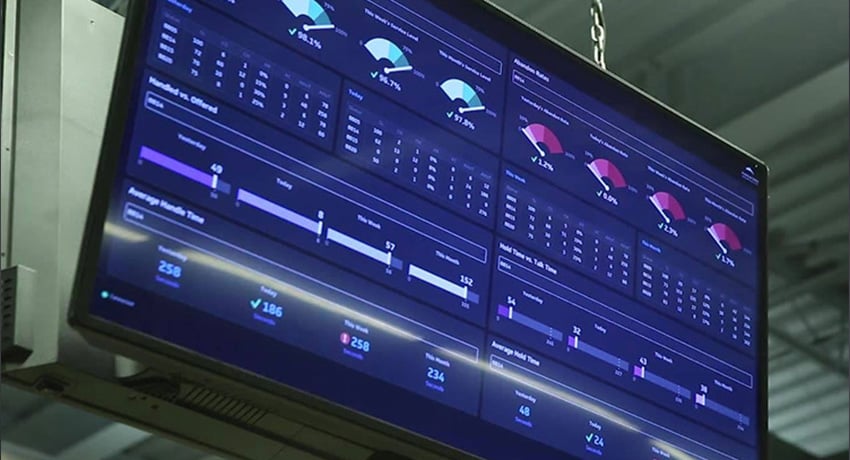
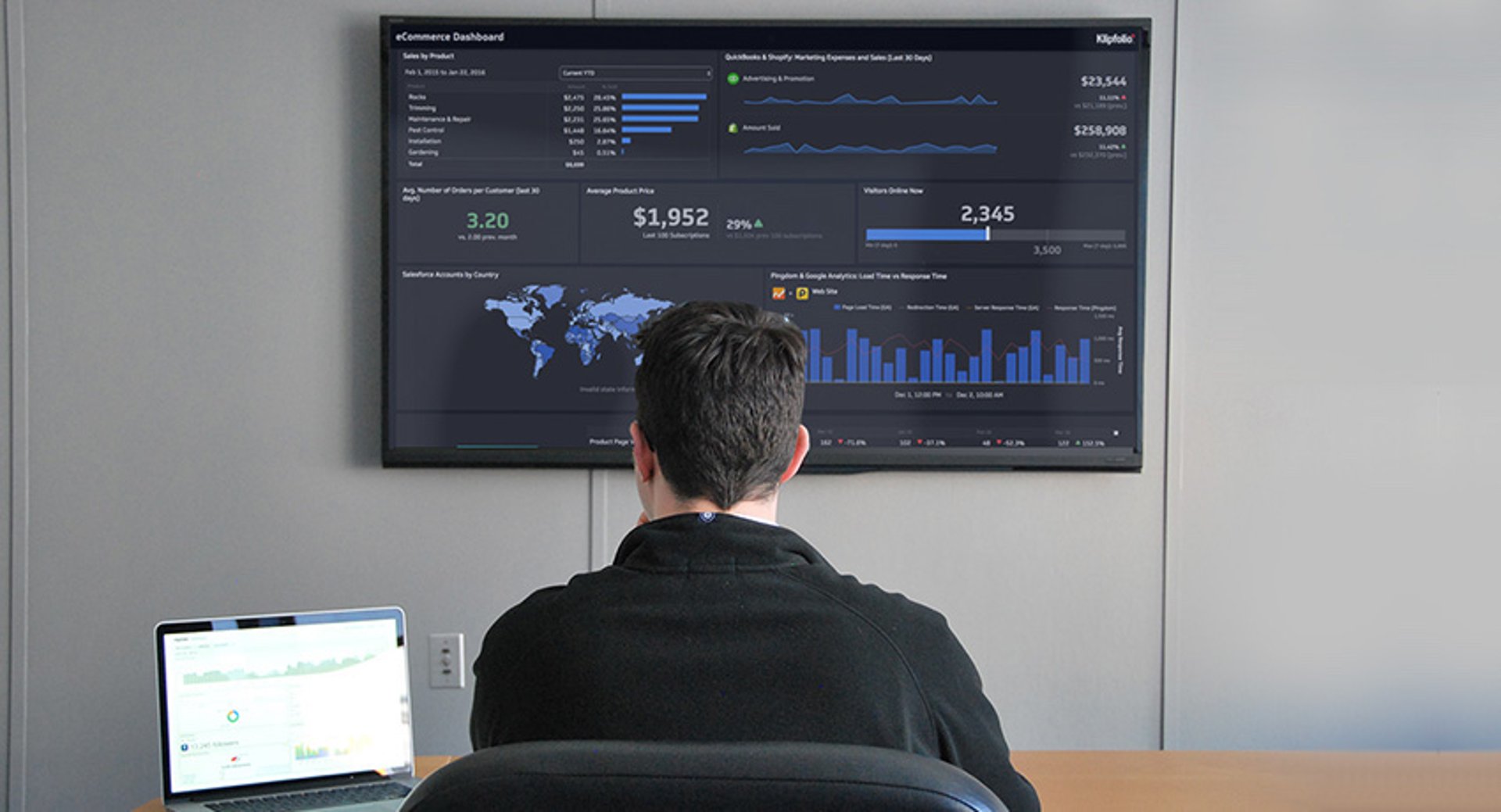
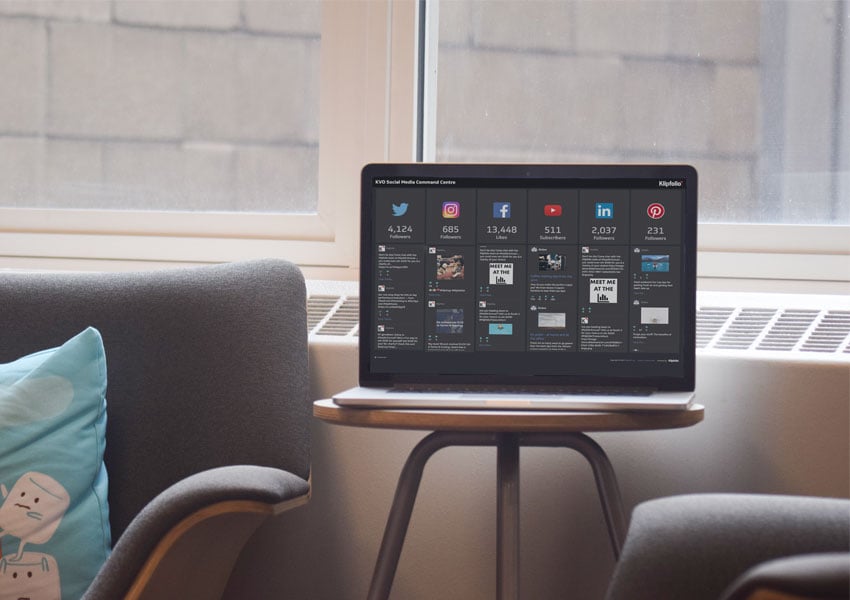
As more employees return to the office, big screens and wallboards have become natural hubs for team alignment. When your most important numbers are visible to everyone, decisions happen faster and goals stay front of mind. Here's how to get the most out of Klips dashboards on TVs, wallboards, and large screens.
Why large screen dashboards work
A dashboard on a shared screen does something a spreadsheet or a chatbot summary can't: it stays on. Your team doesn't have to ask for a number, pull a report, or explain the business context from scratch each time. The answer is already there, updated automatically, visible to everyone in the room.
When the right metrics are on the wall, you get:
- Immediate alignment: Everyone sees the same numbers, so conversations start from the same place.
- Faster decisions: Leaders and staff respond to trends and anomalies without waiting for someone to pull data.
- Shared accountability: Visible goals drive focus and keep teams honest about progress.
- A data-driven culture: When data is public, conversations shift from opinions to facts.
"Since the implementation of Klipfolio Klips, we are much smarter about our business. Every team member has the data on their phone and we have multiple screens that are linked to Klips in our various offices. It's truly been an incredible piece of software within our organization." Elliot Campbell, Trace Medical
Best practices for large screen dashboard displays
These guidelines will help your dashboards look sharp and stay readable from across the room.
1. Use a non-Admin account
Run your display on an account without the Admin role. Admin accounts show additional controls that are useful for authors but create clutter on a shared screen.
2. Choose the right platform
Use a dedicated computer connected to the TV or video wall. Smart TVs and Raspberry Pi devices often lack the memory and processing power to render dashboards smoothly. Check supported systems before you set up.
3. Trim unnecessary content
People glancing at a wallboard can't inspect fine detail. Remove components that don't add real insight at a distance. If you need more information, create a separate dashboard and cycle between them in full-screen mode.
4. Adjust your browser zoom
Set browser zoom to 150 to 175%. This range works well for TVs viewed within six metres (20 feet). Test a few levels to find what works for your room.
5. Use numeric suffixes
When exact precision isn't needed, use suffixes. Display $34.2M instead of $34,231,342.23. It saves space and makes numbers readable at a glance.
6. Scale down gauges
Gauges are designed to stand out. On a large screen, they can dominate the layout and crowd out other data. Reduce gauge size to keep the screen balanced.
7. Use Klip titles
Always include Klip titles. They scale with your zoom settings, work across screen sizes, and give each visualization clear context without requiring anyone to interpret the chart alone.
8. Save space with smart labels
- Drop redundant axis labels when the data makes them obvious.
- Use legends for short descriptions instead of inline text.
- Shorten tick labels and angle them diagonally if space is tight.
9. Keep heights consistent
Align adjacent Klips by matching component heights. Consistency looks clean and guides the eye naturally across charts, tables, and images.
10. Design for glancing, not clicking
Wallboard dashboards get seen many times a day, but nobody interacts with them directly. Design for passive consumption: clear numbers, high contrast, minimal clutter. The goal is a confident read in under three seconds.
Common use cases
Sales Performance Dashboards
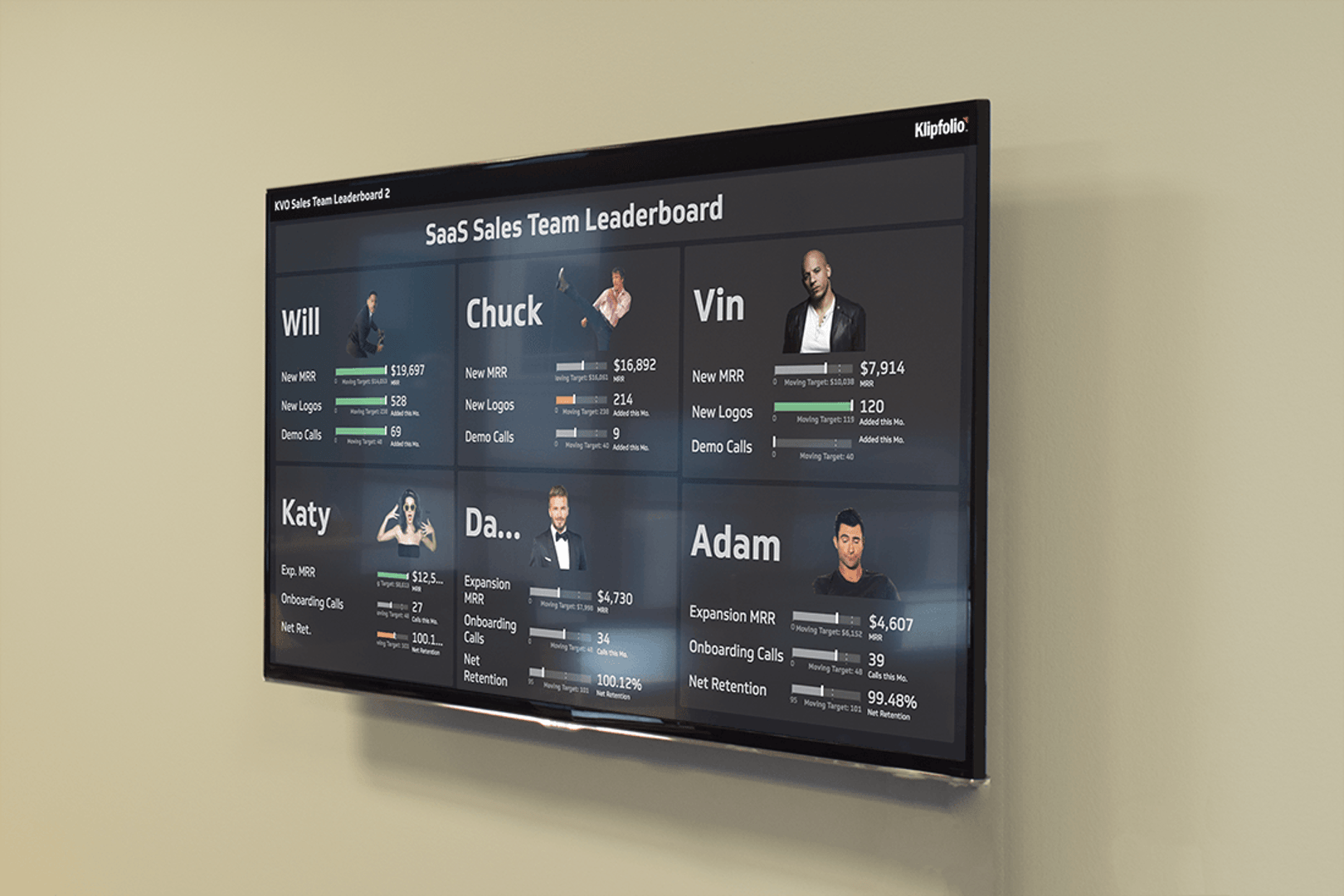
Display daily sales totals, conversion rates, and top-selling products. Teams rally around visible targets, celebrate wins, and course-correct quickly when numbers dip. See sales examples here.
Call-centre wallboards
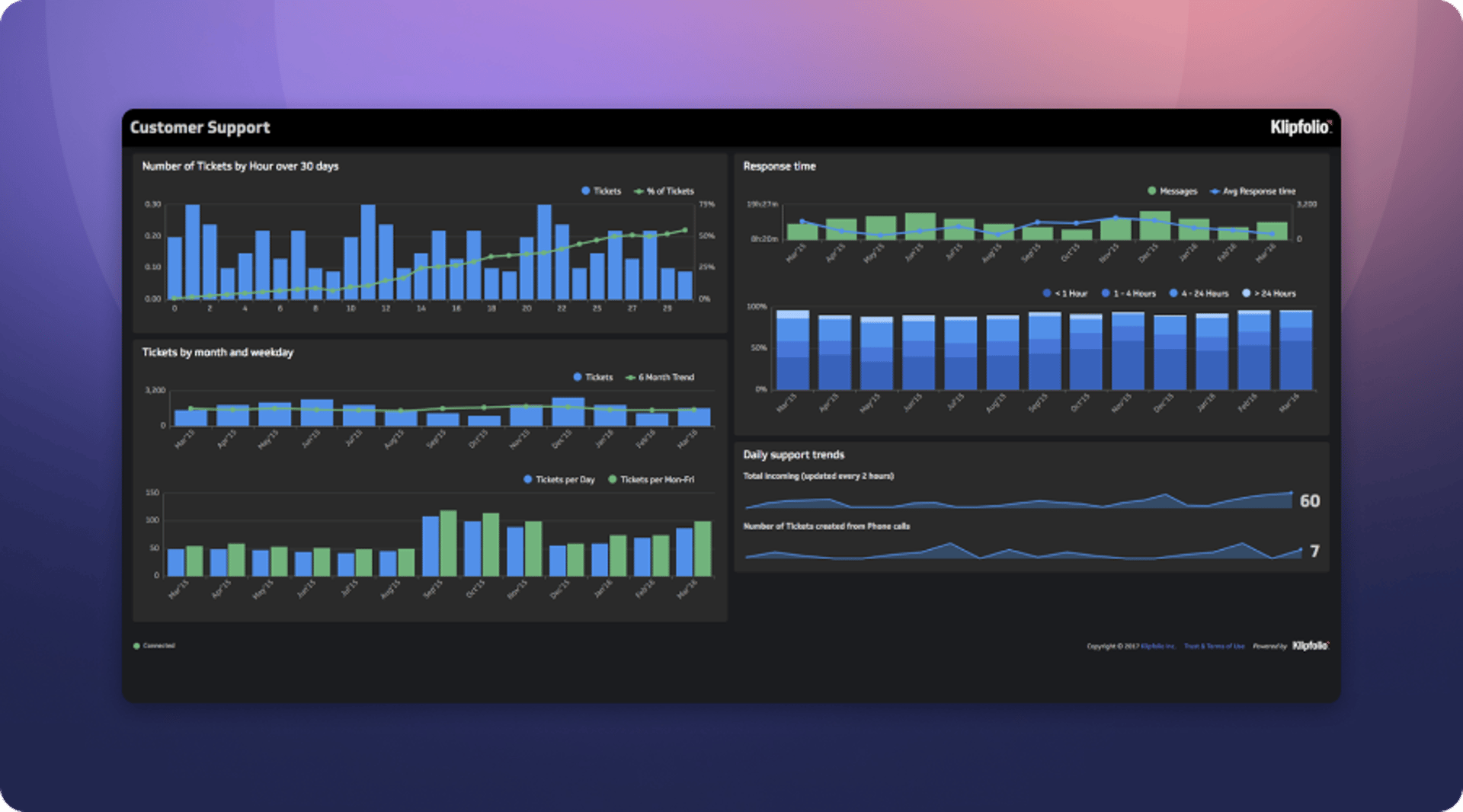
Show live call volumes, average handle times, and service levels. Agents stay engaged when they can see real-time queue length and individual versus team performance. See call-centre examples here.
Operations and deployment monitoring
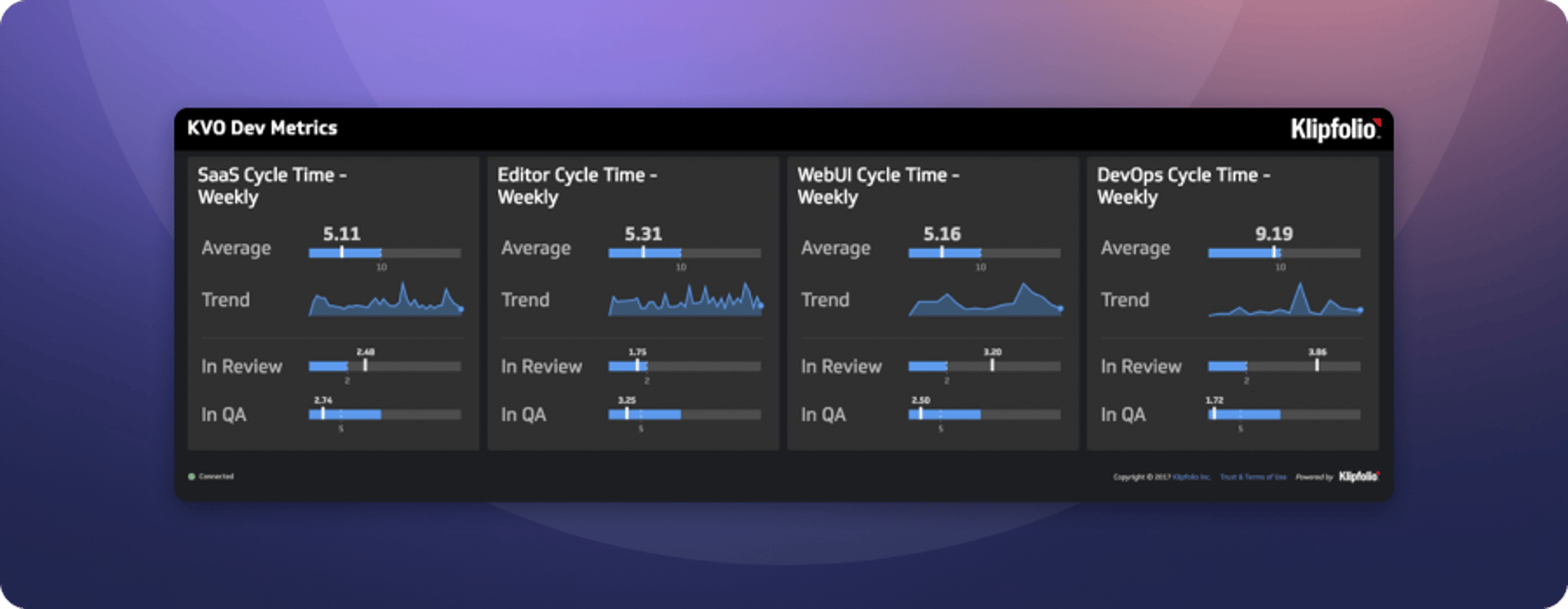
Track server health, performance, and deployment status. Engineering and SRE teams share a single source of truth, which reduces incidents and improves response times. See DevOps examples here.
Marketing campaign trackers
Highlight campaign clicks, cost-per-lead, and channel ROI. Marketers and stakeholders stay in sync on campaign progress and can adjust budgets without waiting for a report. See marketing examples here.
Create custom dashboards for you and your team.
Get started with KlipsGetting started
Try Klipfolio Klips today to build, customize, and display dashboards on any large screen. No credit card required, and setup takes minutes.
Need more help? The Knowledge Center covers advanced display configuration and layout examples.
Updated 2026-08-29
Continue learning

Project Management Dashboard: Guide to KPIs and Examples
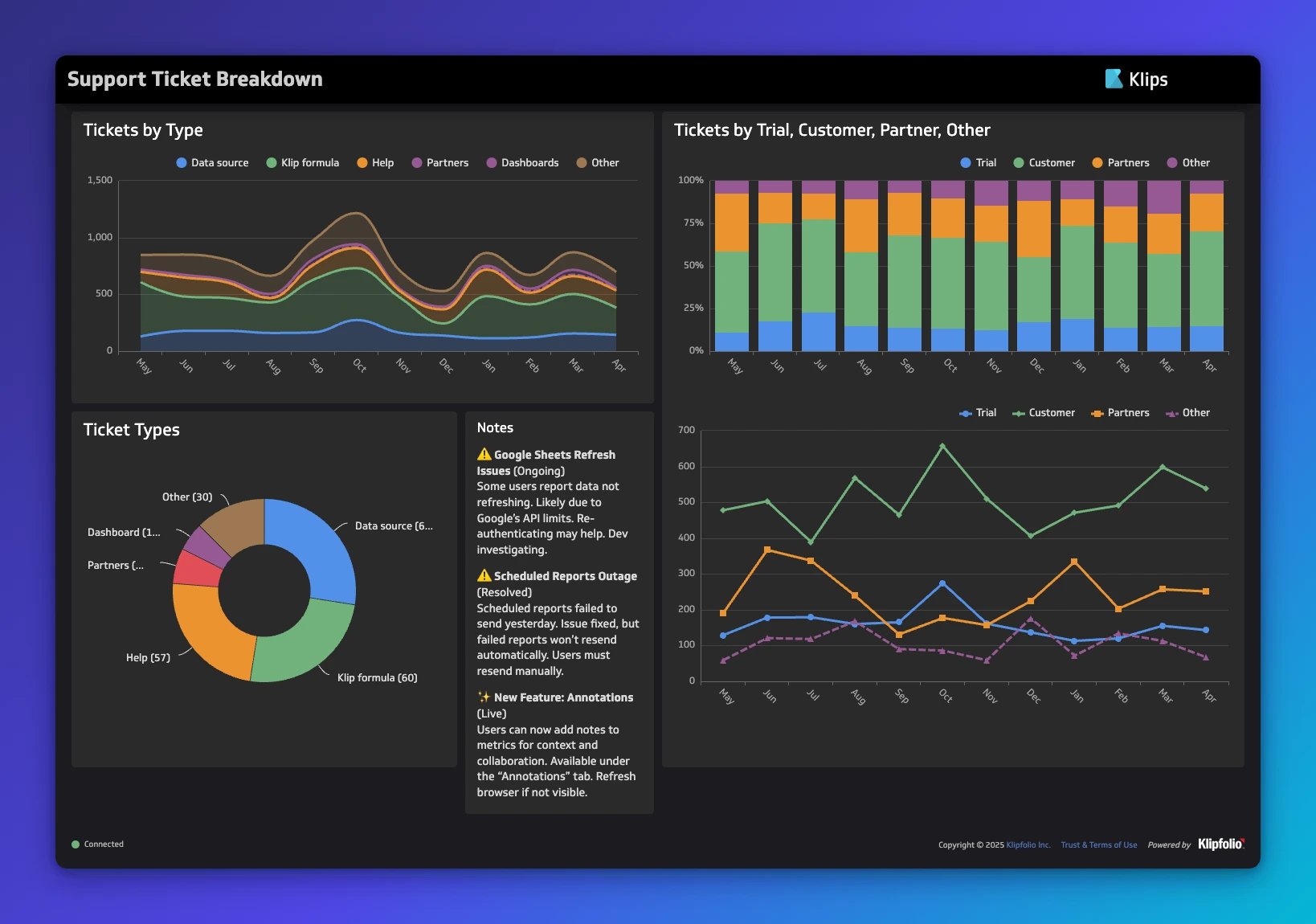
Dashboard design: principles, visualizations, and best practices
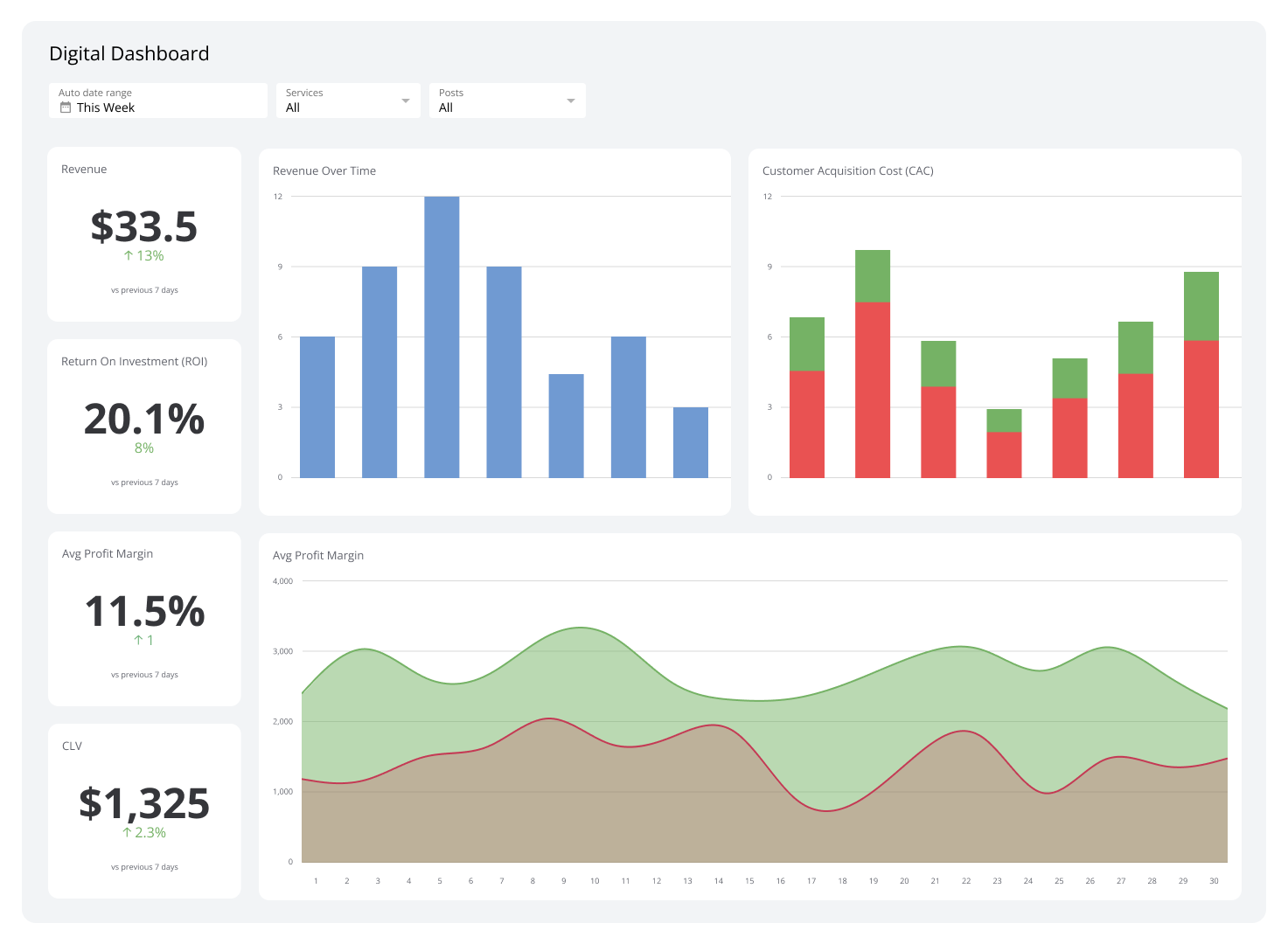
What Is a Dashboard? Types, benefits, and how to build one
KPI report building: how to track and share key metrics

KPI dashboard: 10 guidelines for operational metrics
Startup dashboard guide: how Klipfolio tracks every KPI
Most recent
- OCT 16Klips MCP Server: Use AI to Work with Your Data
- SEP 2310 ways to automate Klips with the Klips API
- SEP 14Automate Klips: from repetitive tasks to managing reporting at scale
- AUG 20The consolidating stack: 3 years of SMB data connection trends
- MAY 28Dashboard Data Security and Privacy: A Five-Layer Framework
- MAR 30The CEO's guide to metrics that actually matter